PrismII Wireless Client and Wireless Access Point
Document revision 03-Oct-2002This document applies to the MikroTik RouterOS V2.5
Overview
The MikroTik RouterOS supports the PrismII chipset based wireless adapter cards for working both as wireless clients (station mode) and wireless access points (ap-bridge or bridge mode). See the list of supported Pirsm II chipset based hardware at the end of the document.
For more information about adapter hardware please see the relevant
User’s Guides and Technical Reference Manuals of the hardware manufacturers.
Notice about PCMCIA Adapters: Currently only the following PCMCIA-ISA and PCMCIA-PCI adapters are recognized properly by the MikroTik RouterOS:All other PCMCIA-ISA and PCMCIA-PCI adapters might not function properly.
- Vadem VG-469 PCMCIA-ISA adapter,
- RICON PCMCIA-PCI Bridge with R5C475 II chip.
The Ricon adapter might not work properly with some older motherboards. When recognized properly by the BIOS during the boot up of the router, it should be reported under the PCI device listing as "PCI/CardBus bridge". Try using another motherboard, if the adapter or the Prism card are not recognized properly.
Contents of the Manual
The following topics are covered in this manual:- Supported Network Topologies
- Installation
- Configuration
- Troubleshooting
- Wireless Network Applications
- Supported Prism II Hardware
Supported Network Topologies
Wireless Client
The Prism interface can be configured to act as an IEEE 802.11b wireless client (station) to associate with an access point. The station mode has been tested with MikroTik RouterOS PrismII based Access Points and CISCO/Aironet Wireless Ethernet Bridges and Access points. The station mode has been tested on a 23km link with CISCO/Aironet Bridge as a base station.Wireless Access Point
The Prism interface can be configured to act as an IEEE 802.11b wireless access point. It requires the Prism AP Feature License. The access pint can register up to 2007 wireless clients. The access point mode has been tested with PrismII, CISCO/Aironet and ORiNOCO/WaveLAN clients.The PrismII Access Point interface can register other access points. Thus, it is possible to bridge networks over wireless links.
Wireless Bridge (new in V2.5.3 and up)
This is limited version of the Access Point mode which allows only one client to be registered but does not require the Prism AP feature license, only the 2.4GHz Wireless license. Thus, it is possible to create point-to-point links and bridge networks over wireless links.
Installation
The MikroTik Router should have the prism software package installed.
The software package file prism-2.x.npk can be downloaded from
MikroTik’s web page www.mikrotik.com.
To install the package, please upload the correct version file to the router and reboot.
Use BINARY mode ftp transfer.
After successful installation the package should be listed under the installed
software packages list, for example:
[MikroTik] > system package print
Flags: I - invalid
  #   NAME                  VERSION              BUILD-TIME           UNINSTALL
  0   advanced-tools        2.5.4                may/08/2002 17:42:32 no
  1   pptp                  2.5.4                may/08/2002 17:17:22 no
  2   prism                 2.5.4                may/08/2002 17:21:12 no
  3   routing               2.5.4                may/08/2002 17:24:16 no
  4   ssh                   2.5.4                may/08/2002 17:14:31 no
  5   thinrouter-pcipc      2.5.4                may/08/2002 17:22:32 no
  6   system                2.5.4                may/08/2002 17:12:09 no
  7   ppp                   2.5.4                may/08/2002 17:16:44 no
  8   pppoe                 2.5.4                may/08/2002 17:18:26 no
[MikroTik] >
License
The PrismII chipset based adapters, like other 2.4GHz wireless adapters, require the 2.4GHz wireless feature license. One license is for one installation of the MikroTik RouterOS, disregarding how many cards are installed in one PC box. The wireless feature is not included in the Free Demo or Basic Software License. The 2.4GHz Wireless Feature cannot be obtained for the Free Demo License. It can be obtained only together with the Basic Software License.
Note! The 2.4GHz Wireless Feature License enables only the station or bridge (new in V2.5.3 and up) mode of the Prism II card.
To enable the access point mode, additionally the Wireless AP Feature License is required.
The MikroTik RouterOS supports as many PrismII chipset based cards as many free resources are on your system, i.e., IRQs and adapter slots. One license is valid for all cards on your system.
System Resource Usage
Before installing the wireless adapter, please check the availability of free IRQ's and I/O base addresses. A system with installed PrismII card and Ricon PCMCIA-PCI adapter reports, for example, the following:
[MikroTik] > system resource irq print
Flags: U - unused
   IRQ OWNER
   1   keyboard
   2   APIC
 U 3
   4   serial port
 U 5
 U 6
 U 7
 U 8
   9   ether1
 U 10
   11  PCMCIA service
   11  [prism2_cs]
 U 12
 U 13
   14  IDE 1
[MikroTik] > system resource io print
 PORT-RANGE        OWNER
 20-3F             APIC
 40-5F             timer
 60-6F             keyboard
 80-8F             DMA
 A0-BF             APIC
 C0-DF             DMA
 F0-FF             FPU
 100-13F           [prism2_cs]
 1F0-1F7           IDE 1
 2F8-2FF           serial port
 3C0-3DF           VGA
 3F6-3F6           IDE 1
 3F8-3FF           serial port
 CF8-CFF           [PCI conf1]
 EF00-EFFF         [Realtek Semiconductor Co., Ltd. RTL-8139]
 EF00-EFFF         [8139too]
 FC00-FC7F         [Cyrix Corporation 5530 IDE [Kahlua]]
 FC00-FC07         IDE 1
 FC08-FC0F         IDE 2
[MikroTik] >
Installing the Wireless Adapter
The basic installation steps of the wireless adapter should be as follows:- Check the system BIOS settings and make sure you do not have the 'PnP OS Installed' set to 'Yes'. If you have this setting, make sure it is set to 'No'.
- Check the system BIOS settings for peripheral devices, like, Parallel or Serial communication ports. Disable them, if you plan to use IRQ's assigned to them by the BIOS.
Loading the Driver for the Wireless Adapter
PCI and PC (PCMCIA) cards do not require a 'manual' driver loading, since they are recognized automatically by the system and the driver is loaded at the system startup.There can be several reasons for a failure to load the driver, for example:
- The driver cannot be loaded because other device uses the requested IRQ.
Try to set the IRQ assignment to PCI slots using the system BIOS configuration.
Usually two consecutive beeps of high tone can be heard during the startup of the MikroTik RouterOS router with PCMCIA PrismII card. If the second beep has a lower tone, or there is only one lower tone beep, most likely there is a compatibility problem with the motherboard. Try to use another type of motherboard.
Wireless Interface Configuration
If the driver has been loaded successfully, and you have the
required 2.4GHz Wireless Software License, then the Prism II 2.4GHz Wireless
interface should appear under the /interface list with the name prismX, where X is 1,2,...
You can change the interface name to a more descriptive one using the 'set' command.
To enable the interface, use the 'enable' command:
[MikroTik] > interface print
Flags: X - disabled, D - dynamic
  #   NAME                 TYPE             MTU
  0   ether1               ether            1500
  1 X prism1               prism            1500
[MikroTik] > interface enable 1
[MikroTik] > interface print
Flags: X - disabled, D - dynamic
  #   NAME                 TYPE             MTU
  0   ether1               ether            1500
  1   prism1               prism            1500
[MikroTik] >
More configuration and statistics parameters can be found under the /interface prism menu:
[MikroTik] interface prism> print
Flags: X - disabled
  0   name="prism1" mtu=1500 mac-address=00:90:4B:03:F1:88 arp=enabled
      mode=station root-ap=00:00:00:00:00:00 frequency=2442MHz ssid="abc46"
      default-authentication=yes default-forwarding=yes max-clients=2007
      supported-rates=1-11 basic-rates=1

[MikroTik] interface prism>
Argument description:
name - Interface name (same as for other interfaces)
mtu - Maximum transfer unit (same as for other interfaces)
mac-address - MAC address of card. In AP mode this will also be BSSID of BSS.
arp - ARP mode (same as for ethernet interfaces)
mode - Mode of the interface (station / bridge / ap-bridge).
If station, card works as station (client) for the wireless infrastructure),
if bridge, card works as access point, but can register only one client or access point,
if ap-bridge, card works as access point, i.e., it creates wireless infrastructure.
root-ap - (only ap-bridge or bridge) MAC address of the root access point to register to.
frequency - (only ap-bridge or bridge) Frequency that AP will use to create BSS
ssid - Service Set Identifier. In station mode - ssid to connect to, in AP and P2P mode - ssid to use when creating BSS (this can not be left blank).
client-name - Client name
max-clients - (only ap-bridge or bridge) Maximum number of clients (including other access points), that is allowed to associate with this access point (1...2007).
supported-rates - Rates at which this node will work.
basic-rates - (only ap-bridge or bridge) Rates that every client that plans to connect to this AP should be able to work at. It is recommended to set it to '1', since not all clients might support rates 1-11.
default-authentication - (only ap-bridge or bridge) What to do with client that wants to associate, but it is not in the access-list.
default-forwarding - (only ap-bridge or bridge) What to do with client that wants to send packets to other wireless clients, but it is not in the access-list.
Station Mode Configuration
To set the wireless interface for working with an IEEE 802.11b access point (register to the AP),
you should set the following parameters:
- The Service Set Identifier. It should match the ssid of the AP.
- The Operation Mode of the card should be set to 'station'.
- The Supported Rate of the card should match the basic rates of the AP. For example, if the AP has basic-rate=1, the client can have supported-rate=1-11. If the AP has basic-rate=1-11, then all clients must have the supported-rate=1-11 Thus, it is okay to leave the supported-rate=1-11 for the client.
[MikroTik] interface prism> set prism1 ssid=testing
[MikroTik] interface prism> enable prism1
[MikroTik] interface prism> print
Flags: X - disabled
  0   name=prism1 mtu=1500 mac-address=00:90:4B:04:66:D6 arp=enabled
      mode=station root-ap=00:00:00:00:00:00 frequency=2412MHz ssid=testing
      default-authentication=yes default-forwarding=yes supported-rates=1-11
      basic-rates=1-11

[MikroTik] interface prism>
Note for CISCO/Aironet Wireless Bridge and Access Point users
When working with Prism II chipset based clients, the CISCO/Aironet Wireless Bridge or AP should have the following settings:
- the Proprietary Extensions should be turned 'off' under Configuration/Radio/802.11 menu
- the Encapsulation Protocol should be RFC1042 under Configuration/Radio/802.11/Encapsulation menu
Monitoring the Interface Status
In station mode, the prism interface status can be monitored using the /interface prism monitor command:
[MikroTik] interface prism> monitor 0
            status: connected-to-ess
         data-rate: 11Mbps
              ssid: testing
             bssid: 00:90:4B:03:F1:84
    signal-quality: 92
      signal-level: 154
       noise-level: 2

[MikroTik] interface prism>
Argument description:
status - status of the interface
'searching-for-network' - the card has not registered to an AP and is searching for one to register to;
'connected-to-ess' - the card has registered to an AP.
data-rate - the actual data rate of the connection.
ssid - the Service Set Identifier.
bssid - the Basic Service Set Identifier (actually, the MAC address) of the access point.
signal-quality - the signal quality (0-92).
signal-level - the average signal level (27-154).
noise-level - the average noise level (27-154).
The monitor command does not work, if the interface is disabled, or the mode is 'ap-bridge' or 'bridge'.
Access Point Mode Configuration
To set the wireless interface for working as an IEEE 802.11b access point (register clients),
you need both the 2.4GHz Wireless Feature License and the Prism AP Feature Licenses.
You should set the following parameters:
- The Service Set Identifier. It should be unique for your system.
- The Operation Mode of the card should be set to 'ap-bridge' or 'bridge' In 'bridge' mode, only one client can be registered.
- The Frequency of the card.
All other parameters can be left as default. However, you should make sure, that all clients support the basic rate of your access point, i.e., the supported-rates of the client should cove the basic-rates of the access point.
To configure the wireless interface for working as an access point with ssid "testing" and use the frequency 2442MHz, it is enough to enter the command:
[MikroTik] interface prism> set prism1 mode=ap-bridge frequency=2442MHz \
\... ssid=testing
[MikroTik] interface prism> print
Flags: X - disabled
  0   name=prism1 mtu=1500 mac-address=00:90:4B:03:F1:84 arp=enabled
      mode=ap-bridge root-ap=00:00:00:00:00:00 frequency=2442MHz
      ssid=testing default-authentication=yes default-forwarding=yes
      supported-rates=1-11 basic-rates=1

[MikroTik] interface prism>
Use the registration table to see the associated clients.
Registration Table
The registration table shows all clients currently associated with the access point, for example:
[MikroTik] interface prism> registration-table print
  # INTERFACE                     MAC-ADDRESS       TYPE      PARENT
  0 prism1                        00:60:F5:04:03:39 local
  1 prism1                        00:00:E8:69:69:F0 local
  2 prism1                        00:40:96:37:A3:39 client
  3 prism1                        00:E0:C5:6E:23:5B local
[MikroTik] interface prism>
Argument description for the registration-table entry:
interface - interface that client is registered to
mac-address - mac address of the registered client
type - type of the client:
'client' - client registered to the interface
'local' - client learned from bridged interface
'ap' - client is an access point
'forward' - client is forwarded from another access point
parent - parent access point's MAC address, if forwarded from another access point
The print stats or print detail commands give additional per-client statistics:
[MikroTik] interface prism registration-table> print stats
  0 interface=prism1 mac-address=00:60:F5:04:03:39 type=local

  1 interface=prism1 mac-address=00:00:E8:69:69:F0 type=local

  2 interface=prism1 mac-address=00:40:96:37:A3:39 type=client
    packets=4338,5611 bytes=2661200,577450 signal-level=18/20/24
    noise-level=3/9/26 data-rate=10/110/110 tx-rate=110
    last-update=00:00:00.320 uptime=03:09:38.980

  3 interface=prism1 mac-address=00:E0:C5:6E:23:5B type=local

[MikroTik] interface prism registration-table>
Argument description (only for wireless clients):
packets - number of received and sent packets
bytes - number of received and sent bytes
signal-level - min/average/max signal level
noise-level - min/average/max noise level
data-rate - min/average/max receive data rate
tx-rate - transmit data rate
last-update - time since the last update
uptime - time the client is associated with the access point
Access List
The access list is used by the access point to restrict authentications (associations) of clients. This list contains MAC address of client and associated action to take when client attempts to connect. Also, the forwarding of frames sent by the client is controlled.The association procedure is as follows: when a new client wants to associate to the AP that is configured on interface prismX, entry with client's MAC address and interface prismX is looked up in the access-list. If such entry is found, action specified in it is taken. Otherwise 'default-authentication' and 'default-forwarding' of interface prismX is taken.
To add an access list entry, use the 'add' command, for example:
[MikroTik] interface prism access-list>
add mac-address=00:40:96:37:A3:39 interface=prism1
[MikroTik] interface prism access-list> print
Flags: X - disabled, I - invalid
  0   mac-address=00:40:96:37:A3:39 interface=prism1 authentication=yes
      forwarding=yes

[MikroTik] interface prism access-list>
Argument description:
mac-address - MAC address of the client
interface - AP interface
authentication - (yes / no) - accept this client when it tries to connect or not
forwarding - (yes / no) - forward the client's frames to other wireless clients or not
If you have default authentication action for the interface set to 'yes', you can disallow this node to register at the AP's interface 'prism1' by setting 'authentication=no' for it. Thus, all nodes except this one will be able to register to the interface 'prism1'.
If you have default authentication action for the interface set to 'no', you can allow this node to register at the AP's interface 'prism1' by setting 'authentication=yes' for it. Thus, only the specified nodes will be able to register to the interface 'prism1'.
Registering the Access Point to another Access Point
You can configure the access point to registering to another (root) access point by specifying the MAC address of the root access point:
[MikroTik] interface prism> set prism1 root-ap=00:90:4B:03:F1:71
[MikroTik] interface prism> print
Flags: X - disabled
  0   name=prism1 mtu=1500 mac-address=00:90:4B:03:F1:84 arp=enabled
      mode=ap-bridge root-ap=00:90:4B:03:F1:71 frequency=2442MHz
      ssid=testing default-authentication=yes default-forwarding=yes
      supported-rates=1-11 basic-rates=1

[MikroTik] interface prism>
The 'non-root' access point will register the clients only if it is registered to the 'root' access point.
Having one access point registered to another one enables bridging the networks, if the bridging mode between the prism and the ethernet interfaces is used. Note, that in the station mode, the bridging cannot be used between the prism and the ethernet interfaces.
The prism interface has feature which allows scanning for available networks.
While scanning, the card unregisters itself from the access point (in station mode),
or unregisters all clients (in bridge or ap-bridge mode). Thus, network connections are
lost while scanning.
Use the /interface prism scan command to scan for available networks, for example:
Argument description:
The result of scanning contains a list of discovered access points along
with their MAC addresses, channel frequencies, service set identificators, and the
measured signal level.
The prism interface status changes can bo logged locally or to a remote syslog daemon
by enabling the logging facility, for example:
The local logs can be viewed using the /log print command.
Network Scan
[MikroTik] interface prism> scan
Scan for wireless networks
  _interface_
  frequencies  List of frequencies to scan
         time  Time to scan one frequency
[MikroTik] interface prism> scan prism1
00:90:4b:02:17:d3 fequency=2412MHz ssid=rm223AP signal-level=3
00:90:4b:02:17:e2 fequency=2412MHz ssid=john signal-level=38
00:90:4b:03:f1:6d fequency=2427MHz ssid=StarWind signal-level=36
00:50:18:0a:bd:c0 fequency=2437MHz ssid=dlink signal-level=23
[MikroTik] interface prism>
_interface_ - interface name to use for scanning
frequencies - list of frequencies to scan for, e.g., "2412MHz 2427MHz "
time - time to scan for one frequency. The total time used for scanning
is multiplier of this value and the number of frequencies to scan.
[MikroTik] system logging facility> set Prism-Info logging=local
[MikroTik] system logging facility> print
  # FACILITY            LOGGING PREFIX              REMOTE-ADDRESS  REMOTE-PORT
  0 Firewall-Log        none
  1 PPP-Account         none
  2 PPP-Info            none
  3 PPP-Error           none
  4 System-Info         local
  5 System-Error        local
  6 System-Warning      local
  7 Prism-Info          local
[MikroTik] system logging facility>
Avoid changing the frequency or ssid while the interface is enabled.
Sometimes you need to reboot the router after the change, and only then enable the interface.
This problem should be fixed soon.
Obtain the required license for 2.4GHz wireless feature.
Set some parameter of the prism interface to get all nodes re-register.
Check the cabling and antenna alignment.
Wireless Network Applications
Two possible wireless network configurations are discussed in the following examples:
Wireless Client
Let us consider the following point-to-multipoint network setup with CISCO/Aironet Wireless Access Point as a base station and MikroTik Wireless Router as a client:
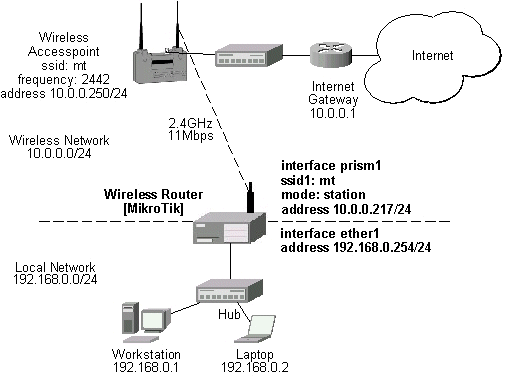
The access point is connected to the wired network's HUB and has IP address from the network 10.0.0.0/24. The minimum configuration required for the AP is:
- Setting the Service Set Identifier (up to 32 alphanumeric characters). In our case we use ssid "mt".
- Setting the allowed data rates at 1-11Mbps, and the basic rate at 1Mbps.
- Choosing the frequency, in our case we use 2442MHz.
- Setting the identity parameters: ip address/mask and gateway. These are required if you want to access the AP remotely using telnet or http.
- If you use CISCO/Aironet Wireless Ethernet Bridge or Access Point, you should set the Configuration/Radio/I80211/Extended (Allow proprietary extensions) to off, and the Configuration/Radio/I80211/Extended/Encapsulation (Default encapsulation method) to RFC1042. If left to the default on and 802.1H, respectively, you won't be able to pass traffic through the bridge.
Reminder! Please note, that the AP is not a router! It has just one network address, and is just like any host on the network. It resembles a wireless-to-Ethernet HUB or bridge. The AP does not route the IP traffic!
The minimum configuration for the MikroTik router's prism wireless interface is:
- Setting the Service Set Identifier to that of the AP, i.e., "mt"
- The Operation Mode should be "station".
[MikroTik] interface prism> set 0 ssid=mt
[MikroTik] interface prism> monitor 0
                bssid: 00:40:96:37:71:1E
    current-frequency: 2442MHz
       signal-quality: 92
         signal-level: 195
          noise-level: 0
         current-rate: 11
               status: connected

[MikroTik] interface prism>
The IP addresses assigned to the wireless interface should be from the network 10.0.0.0/24, e.g.:
[MikroTik] ip address> add address=10.0.0.217/24 interface=prism1
[MikroTik] ip address> print
Flags: X - disabled, I - invalid, D - dynamic
  #   ADDRESS            NETWORK         BROADCAST       INTERFACE
  0   10.0.0.217/24      10.0.0.0        10.0.0.255      prism1
  1   192.168.0.254/24   192.168.0.254   192.168.0.254   ether1
[MikroTik] ip address>
The default route should be set to the gateway router 10.0.0.1 (not to the AP 10.1.1.250 !):
[MikroTik] ip route> add gateway=10.0.0.1
[MikroTik] ip route> print
Flags: X - disabled, I - invalid, D - dynamic, R - rejected
  #    TYPE           DST-ADDRESS        GATEWAY        DISTANCE INTERFACE
  0    static         0.0.0.0/0          10.0.0.1       1        prism1
  1 D  connect        10.0.0.0/24        0.0.0.0        0        prism1
  2 D  connect        192.168.0.254/24   0.0.0.0        0        ether1
[MikroTik] ip route>
Note! You cannot use the bridging function between the prism and ethernet interfaces, if the prism interface is in the station mode. The bridge does not work in this case!
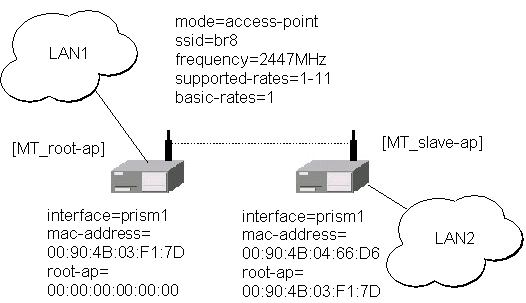
Let us consider the following point-to-point wireless network setup with two MikroTik Wireless Routers:
You need both the 2.4GHz Wireless and the Prism AP Feature Licenses to enable the AP mode.
To make the MikroTik router work as an access point,
the configuration of the prism wireless interface should be as follows:
The following command should be issued to change the settings for the prism interface:
The list of registered clients looks like follows:
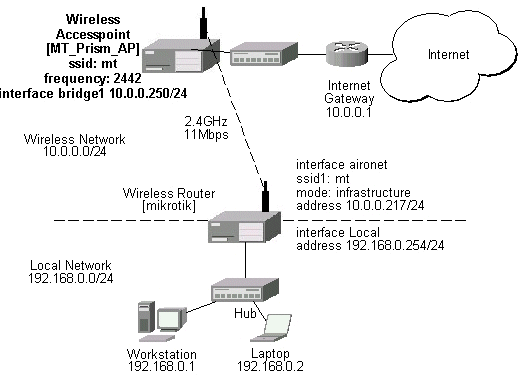
There are two possible ways of implementing the wireless access point feature:
The client router requires the System Service Identificator set to "mt".
The IP addresses assigned to the interfaces should be from networks
10.0.0.0/24 and 192.168.0.0./24:
Wireless Access Point
[MT_Prism_AP] interface prism> set 0 mode=ap-bridge \
                               frequency=2442MHz ssid=mt
[MT_Prism_AP] interface prism> print
Flags: X - disabled
  0   name=prism1 mtu=1500 mac-address=00:03:C0:00:06:72 arp=enabled
      mode=ap-bridge frequency=2442MHz ssid=mt client-name=
      max-associations=250 hide-ssid=no supported-rates=1-11 basic-rates=1-2
      fragmentation-threshold=2346 rts-threshold=2432
      default-access-action=allow

[MT_Prism_AP] interface prism> monitor 0
                bssid: 00:03:C0:00:06:72
    current-frequency: 2442MHz
               status: ap-mode

[MT_Prism_AP] interface prism>
[MT_Prism_AP] interface prism> registration-table print
  # INT MAC-ADDRESS       SIGNAL     SILENCE    RATE       UPTIME
  0 pri 00:40:96:29:02:88 210        0          11         00:12:50
  1 pri 00:40:96:37:71:1E 192        0          11         00:00:35
[MT_Prism_AP] interface prism>
To enable bridging between the ethernet and prism interfaces, do the following:
[MT_Prism_AP] bridge> set ip=forward arp=forward other=forward
[MT_Prism_AP] bridge> print
           ip: forward
          ipx: discard
    appletalk: discard
         ipv6: discard
          arp: forward
        other: forward
     priority: 1
[MT_Prism_AP] bridge>
[MT_Prism_AP] bridge interface> print
Flags: X - disabled
  #   INTERFACE
  0 X ether1
  1 X prism1
[MT_Prism_AP] bridge interface> enable ether1,prism1
[MT_Prism_AP] bridge interface> print
Flags: X - disabled
  #   INTERFACE
  0   ether1
  1   prism1
[MT_Prism_AP] bridge interface>
[MT_Prism_AP] interface> print
Flags: X - disabled, D - dynamic
  #   NAME                 MTU   TYPE
  0   ether1               1500  ether
  1 X bridge1              1500  bridge
  2   prism1               1500  prism
[MT_Prism_AP] interface> enable 1
[MT_Prism_AP] interface> print
Flags: X - disabled, D - dynamic
  #   NAME                 MTU   TYPE
  0   ether1               1500  ether
  1   bridge1              1500  bridge
  2   prism1               1500  prism
[MT_Prism_AP] interface>
[MT_Prism_AP] ip address> add address=10.0.0.250/24 interface=bridge1
[MT_Prism_AP] ip address> print
Flags: X - disabled, I - invalid, D - dynamic
  #   ADDRESS            NETWORK         BROADCAST       INTERFACE
  0   10.0.0.250/24      10.0.0.0        10.0.0.255      bridge1
[MT_Prism_AP] ip address> .. route add gateway=10.0.0.1
[MT_Prism_AP] ip address> .. route print
Flags: X - disabled, I - invalid, D - dynamic, R - rejected
  #    TYPE           DST-ADDRESS        GATEWAY        DISTANCE INTERFACE
  0    static         0.0.0.0/0          10.0.0.1       1        bridge1
  1 D  connect        10.0.0.0/24        0.0.0.0        0        bridge1
[MT_Prism_AP] ip address>
[mikrotik] ip address> print
Flags: X - disabled, I - invalid, D - dynamic
  #   ADDRESS            NETWORK         BROADCAST       INTERFACE
  0   10.0.0.217/24      10.0.0.0        10.0.0.255      aironet
  1   192.168.0.254/24   192.168.0.0     192.168.0.255   Local
[mikrotik] ip address>
The default route should be set to gateway 10.0.0.1 for the router [mikrotik]:
[mikrotik] ip route> add gateway=10.0.0.254
[mikrotik] ip route> print
Flags: X - disabled, I - invalid, D - dynamic, R - rejected
  #    TYPE           DST-ADDRESS        GATEWAY        DISTANCE INTERFACE
  0    static         0.0.0.0/0          10.0.0.1       1        aironet
  1 D  connect        10.0.0.0/24        0.0.0.0        0        aironet
  2 D  connect        192.168.0.254/24   0.0.0.0        0        Local
[mikrotik] ip route>