The MikroTik RouterOS supports the following WaveLAN/ORiNOCO 2.4GHz 11Mbps Wireless Adapter hardware:
For more information about the WaveLAN / ORiNOCO adapter hardware please see the relevant User’s Guides and Technical Reference Manuals in .pdf format from the manufacturer:
Information about configuring the ORiNOCO wireless access point can be found there:
[admin@MikroTik] > /sys package print
Flags: I - invalid
  #   NAME                  VERSION              BUILD-TIME           UNINSTALL
  0   system                2.6beta4             aug/09/2002 20:22:14 no
  1   wavelan               2.6beta4             aug/09/2002 20:31:48 no
  2   ppp                   2.6beta4             aug/09/2002 20:28:01 no
  3   pppoe                 2.6beta4             aug/09/2002 20:29:18 no
  4   pptp                  2.6beta4             aug/09/2002 20:28:43 no
  5   ssh                   2.6beta4             aug/09/2002 20:25:31 no
[admin@MikroTik] >
[admin@MikroTik] > system resource irq print
Flags: U - unused
   IRQ OWNER
   1   keyboard
   2   APIC
 U 3
   4   sync1
   5   Wavelan 802.11
 U 6
 U 7
 U 8
 U 9
 U 10
   11  ether1
 U 12
   13  FPU
   14  IDE 1
[admin@MikroTik] > system resource io print
 PORT-RANGE        OWNER
 20-3F             APIC
 40-5F             timer
 60-6F             keyboard
 80-8F             DMA
 A0-BF             APIC
 C0-DF             DMA
 F0-FF             FPU
 100-13F               Wavelan 802.11
 1F0-1F7           IDE 1
 3C0-3DF           VGA
 3F6-3F6           IDE 1
 CF8-CFF           [PCI conf1]
 1000-100F         [Silicon Integrated Systems [SiS] 5513 [IDE]]
 1000-1007         IDE 1
 1008-100F         IDE 2
 6000-60FF         [Realtek Semiconductor Co., Ltd. RTL-8139]
 6000-60FF         [8139too]
 6100-61FF         [Realtek Semiconductor Co., Ltd. RTL-8139 (#2)]
 6100-61FF         [8139too]
[admin@MikroTik] >
Please note, that not all combinations of I/O base addresses and IRQ's may work on your motherboard.
Special Notice for PCMCIA-PCI adapter users! The IRQ is not being reported back correctly on some MB for PCMCIA-PCI adapters. As a result, the wireless interface appears to be operational, but there can be no data transmitted over the wireless link. For example, when pinging the AP or GW form the router, there is no response to the ping, although the other end gets the MAC address of the WaveLAN interface of the router. To solve this, try using another MB, or use PCMCIA-ISA adapter.
Note! The PC card can be inserted in the PCMCIA-ISA or PCI adapter when the system is running. The wavelan driver is not listed under the list of loaded drivers.
There can be several reasons for a failure to load the driver:
[admin@MikroTik] interface> print
Flags: X - disabled, D - dynamic, R - running
  #    NAME                 TYPE             MTU
  0  R Public               1500  ether
  1  R Local                1500  ether
  2 X  wavelan1             1500  wavelan
[MikroTik] interface> enable 2
[admin@MikroTik] interface> print
Flags: X - disabled, D - dynamic, R - running
  #    NAME                 TYPE             MTU
  0  R Public               1500  ether
  1  R Local                1500  ether
  2  R wavelan1             1500  wavelan
[admin@MikroTik] interface>
More configuration and statistics parameters can be found under the /interface wavelan menu:
[admin@MikroTik] interface> wavelan
[admin@MikroTik] interface wavelan> print
Flags: X - disabled, R - running
  0  R name=wavelan1 mtu=1500 mac-address=00:02:2D:07:D8:44 arp=enabled
       frequency=2412MHz data-rate=11Mbit/s mode=ad-hoc ssid="" client-name=""
       key1="" key2="" key3="" key4="" tx-key=key1 encryption=no

[admin@MikroTik] interface wavelan>
Argument description:
number - Interface number in the list
name - Interface name
mtu - Maximum Transmit Unit (256...2296 bytes). The default value is 1500 bytes.
mac-address - MAC address of the card. Cannot be changed.
frequency - Channel frequency (2412MHz, 2422MHz ... 2484MHz)
data-rate - Data rate (11Mbit/s, 1Mbit/s, 2Mbit/s, 5.5Mbit/s, auto)
mode - Operation mode of the card (infrastructure, ad-hoc)
ssid - Service Set Identifier
client-name - Client name
key1 - Encryption key #1
key2 - Encryption key #2
key3 - Encryption key #3
key4 - Encryption key #4
tx-key - Transmit key (key1, key2, key3, key4)
encryption - Encryption (no, yes)
arp - Address Resolution Protocol, one of the:
- disabled - the interface will not use ARP protocol
- enabled - the interface will use ARP protocol
- proxy-arp - the interface will be an ARP proxy (see corresponding manual)
- reply-only - the interface will only reply to the requests originated to its own IP addresses, but neighbour MAC addresses will be gathered from /ip arp statically set table only.
You can monitor the status of the wireless interface:
[admin@MikroTik] interface wavelan> moitor 0
             bssid: 44:44:44:44:44:44
         frequency: 2422MHz
         data-rate: 11Mbit/s
              ssid: tsunami
    signal-quality: 0
      signal-level: 0
             noise: 0

[admin@MikroTik] interface wavelan>
To set the wireless interface for working with an IEEE 802.11b access point (register to the AP), you should set the following parameters:
[admin@MikroTik] interface wavelan> set 0 ssid MT_w_AP mode infrastructure
[admin@MikroTik] interface wavelan> monitor wavelan1
             bssid: 00:40:96:42:0C:9C
         frequency: 2437MHz
         data-rate: 11Mbit/s
              ssid: MT_w_AP
    signal-quality: 65
      signal-level: 228
             noise: 163

[admin@MikroTik] interface wavelan>
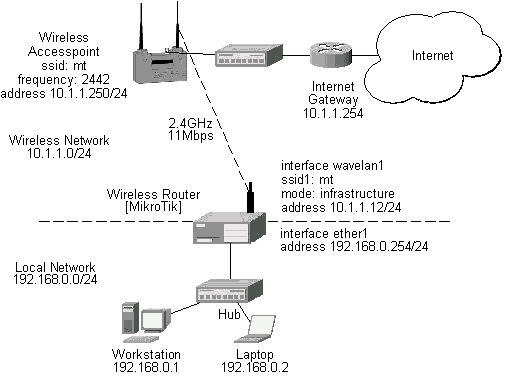
Two possible wireless network configurations are discussed in the following examples:
The access point is connected to the wired network's HUB and has IP address from the network 10.1.1.0/24. The minimum configuration required for the AP is:
Reminder! Please note, that the AP is not a router! It has just one network address, and is just like any host on the network. It resembles a wireless-to-Ethernet HUB or bridge. The AP does not route the IP traffic!
The minimum configuration for the MikroTik router's wavelan wireless interface is:
[admin@MikroTik] interface wavelan> set wavelan1 ssid mt mode infrastructure
[admin@MikroTik] interface wavelan>
             bssid: 00:40:96:42:0C:9C
         frequency: 2437MHz
         data-rate: 11Mbit/s
              ssid: mt
    signal-quality: 64
      signal-level: 228
             noise: 163

[admin@MikroTik] interface wavelan>
The channel frequency argument does not have any meaning, since the frequency of the AP is used.
[admin@MikroTik] ip address> add address 10.1.1.12/24 interface wavelan1
[admin@MikroTik] ip address> add address 192.168.0.254/24 interface ether1
[admin@MikroTik] ip address> print
Flags: X - disabled, I - invalid, D - dynamic
  #   ADDRESS            NETWORK         BROADCAST       INTERFACE
  0   192.168.0.254/24   192.168.0.0     192.168.0.255   ether1
  1   10.1.1.12/24       10.1.1.0        10.1.1.255      wavelan1
[admin@MikroTik] ip address>
The default route should be set to the gateway router 10.1.1.254 (not the AP 10.1.1.250 !):
[admin@MikroTik] ip route> add gateway 10.1.1.254
[admin@MikroTik] > ip route print
Flags: X - disabled, I - invalid, D - dynamic, J - rejected,
C - connect, S - static, R - rip, O - ospf, B - bgp
    #    DST-ADDRESS        G GATEWAY         DISTANCE INTERFACE
    0  S 0.0.0.0/0          r 10.1.1.254      1        wavelan1
    1 DC 192.168.0.0/24     r 0.0.0.0         0        ether1
    2 DC 10.1.1.0/24        r 0.0.0.0         0        wavelan1
[admin@MikroTik] ip route>
To establish a point-to-point link, the configuration of the wireless interface should be as follows:
The other router of the point-to-point link requires
the same parameters to be set:
As we see, the MAC address under the 'bssid' parameter is the same as generated on the first router.
If desired, IP addresses can be assigned to the wireless interfaces of the pint-to-point link routers
using a smaller subnet, say 30-bit one:
The second router will have address 10.0.0.2, the default route to 10.1.1.254,
and a static route for network 192.168.0.0/24 to 10.0.0.1:
It is very important, that the MikroTik Router is configured prior turning on
and configuring the wireless client. The MikroTik router should be up and running,
so the client could join its network.
The configuration of the wireless interface of the MikroTik Router should be as follows:
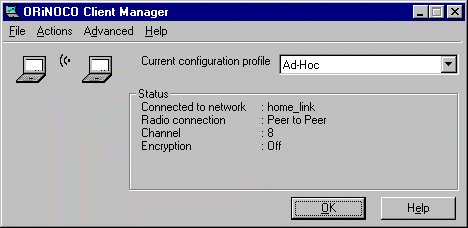
Configure the laptop computer with the Wavelan card following the manufacturer's instructions.
If the laptop Wavelan client has established the wireless link with the MikroTik router, it should report
the same parameters as set on the MikroTik router's wavelan interface:
Here, we see the channel #8, which is 2447MHz frequency.
The IP addresses assigned to the wireless interface of the MikroTik Router
should be from the network 192.168.0.0/24:
Use the ping command to test the connectivity from the router:
Point-to-Point Wireless LAN
Let us consider the following point-to-point wireless network setup with two MikroTik Wireless Routers:
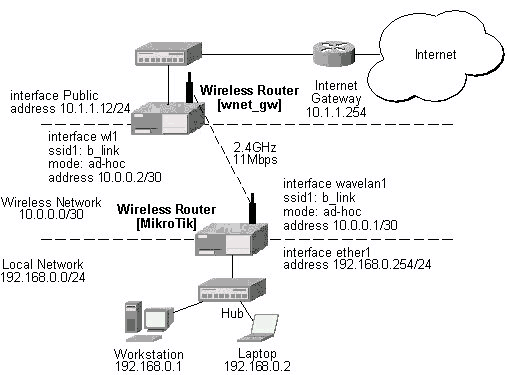
The following command should be issued to change the settings for the wavelan interface:
[admin@MikroTik] interface wavelan> set 0 ssid b_link mode ad-hoc frewency 2412MHz
[admin@MikroTik] interface wavelan> monitor wavelan1
             bssid: 00:02:2D:07:17:23
         frequency: 2412MHz
         data-rate: 11Mbit/s
              ssid: b_link
    signal-quality: 0
      signal-level: 154
             noise: 154
[admin@MikroTik] interface wavelan>
[admin@wnet_gw] interface wavelan> set 0 ssid b_link mode ad-hoc frequency 2412MHz
[admin@wnet_gw] interface wavelan> enable 0
[admin@wnet_gw] interface wavelan> monitor 0
             bssid: 00:02:2D:07:17:23
         frequency: 2412MHz
         data-rate: 11Mbit/s
              ssid: b_link
    signal-quality: 0
      signal-level: 154
             noise: 154
[admin@wnet_gw] interface wavelan>
IP Network Configuration
[admin@MikroTik] ip address> add address 10.0.0.1/30 interface wavelan1
[admin@MikroTik] ip address> add address 192.168.0.254/24 interface ether1
[admin@MikroTik] ip address> print
  # ADDRESS         NETMASK         NETWORK         BROADCAST       INTERFACE
  0 10.0.0.1        255.255.255.252 10.0.0.1        10.0.0.3        wavelan1
  1 192.168.0.254   255.255.255.0   192.168.0.254   192.168.0.255   ether1
[admin@MikroTik] ip address> /ip route add gateway 10.0.0.2
[admin@MikroTik] > ip route print
Flags: X - disabled, I - invalid, D - dynamic, J - rejected,
C - connect, S - static, R - rip, O - ospf, B - bgp
    #    DST-ADDRESS        G GATEWAY         DISTANCE INTERFACE
    0  S 0.0.0.0/0          r 10.0.0.2        1        wavelan1
    1 DC 10.0.0.0/30        r 0.0.0.0         0        wavelan1
    2 DC 192.168.0.0/24     r 0.0.0.0         0        ether1
[admin@MikroTik] ip address>
[admin@wnet_gw] ip address> add address 10.0.0.2/30 interface wl1
[admin@wnet_gw] ip address> add address 10.1.1.12/24 interface Public
[admin@wnet_gw] ip address> print
  # ADDRESS         NETMASK         NETWORK         BROADCAST       INTERFACE
  0 10.0.0.2        255.255.255.252 10.0.0.2        10.0.0.3        wl1
  1 10.1.1.12       255.255.255.0   10.1.1.12       10.1.1.255      Public
[admin@wnet_gw] ip address> /ip route
[admin@wnet_gw] ip route> add gateway 10.1.1.254 interface Public
[admin@wnet_gw] ip route> add gateway 10.0.0.1 interface wl1 \
\... dst-address 192.168.0.0/24
[admin@MikroTik] > ip route print
Flags: X - disabled, I - invalid, D - dynamic, J - rejected,
C - connect, S - static, R - rip, O - ospf, B - bgp
    #    DST-ADDRESS        G GATEWAY         DISTANCE INTERFACE
    0 0.0.0.0/0             r 10.1.1.254      1        Public
    1 192.168.0.0/24        r 10.0.0.1        1        wl1
    2 10.0.0.0/30           r 0.0.0.0         0        wl1
    3 10.1.1.0/24           r 0.0.0.0         0        Public
[admin@wnet_gw] ip route>
Testing the Network Connectivity
The network connectivity can be tested by using ping:
[admin@MikroTik]> ping 10.0.0.2
10.0.0.2 pong: ttl=255 time=2 ms
10.0.0.2 pong: ttl=255 time=2 ms
10.0.0.2 pong: ttl=255 time=2 ms
3 packets transmitted, 3 packets received, 0% packet loss
round-trip min/avg/max = 2/2.0/2 ms
[admin@MikroTik]>
Point-to-Point Wireless LAN with Windows Client
Let us consider the following point-to-point wireless network setup with one MikroTik Wireless Router
and a laptop computer with Wavelan card:
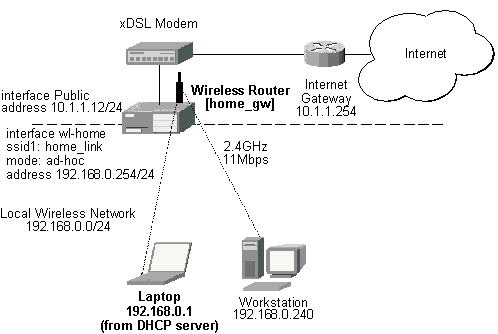
The following command should be issued to change the settings for the wavelan interface:
[admin@home_gw] interface wavelan> set wl-home frequency 2447MHz \
/... mode ad-hoc ssid home_link
[admin@home_gw] interface wavelan> enable wl-home
[admin@home_gw] interface wavelan> print
[admin@MikroTik] interface wavelan> print
Flags: X - disabled, R - running
  0  R name=wl-home mtu=1500 mac-address=00:02:2D:07:D8:44 arp=enabled
       frequency=2447MHz data-rate=11Mbit/s mode=ad-hoc ssid="home_link"
       client-name="" key1="" key2="" key3="" key4="" tx-key=key1 encryption=no

[admin@home_gw] interface wavelan> monitor 0
             bssid: 02:02:2D:07:D8:44
         frequency: 2447MHz
         data-rate: 11Mbit/s
              ssid: home_link
    signal-quality: 0
      signal-level: 154
             noise: 154
[admin@home_gw] interface wavelan>
Note! In Ad-Hoc (Peer-to-Peer) mode the V1.76 ORiNOCO Client Manager program
allows setting only the Network Name (ssid) parameter. The channel (frequency) parameter
is chosen that of the other peer. Therefore, the MikroTik Router should be configured for the
ad-hoc mode operation prior turning on the laptop Wavelan client.
IP Network Configuration
[admin@home_gw] ip address> add interface Public address 10.1.1.12/24
[admin@home_gw] ip address> add interface wl-home address 192.168.0.254/24
[admin@home_gw] ip address> print
  # ADDRESS         NETMASK         NETWORK         BROADCAST       INTERFACE
  0 10.1.1.12       255.255.255.0   10.1.1.12       10.1.1.255      Public
  1 192.168.0.254   255.255.255.0   192.168.0.254   192.168.0.255   wl-home
[admin@home_gw] ip address> /ip route
[admin@home_gw] ip route> add gateway 10.1.1.254
[admin#home_gw] ip route> print
[admin@MikroTik] > ip route print
Flags: X - disabled, I - invalid, D - dynamic, J - rejected,
C - connect, S - static, R - rip, O - ospf, B - bgp
    #    DST-ADDRESS        G GATEWAY         DISTANCE INTERFACE
    0  S 0.0.0.0/0          r 10.1.1.254      1        Public
    1 DC 192.168.0.0/24     r 0.0.0.0         0        wl-home
    2 DC 10.1.1.0/24        r 0.0.0.0         0        Public
[admin@MikroTik] ip route>
Testing the Network Connectivity
[admin@home_gw] > ping 192.168.0.1
192.168.0.1 pong: ttl=32 time=3 ms
192.168.0.1 pong: ttl=32 time=2 ms
192.168.0.1 pong: ttl=32 time=2 ms
3 packets transmitted, 3 packets received, 0% packet loss
round-trip min/avg/max = 2/2.3/3 ms
[admin@home_gw] >
© Copyright 1999-2002, MikroTik