PrismII Wireless Client and Wireless Access Point

Document revision 04-Sep-2001
This document applies to the V2.4 of the MikroTik RouterOS

Overview

The MikroTik RouterOS supports the following IEEE 802.11b standard PrismII chipset based wireless adapter hardware:

For more information about adapter hardware please see the relevant User’s Guides and Technical Reference Manuals of the hardware manufacturers.

The MikroTik RouterOS supports the PrismII chipset based wireless adapter cards for working both as wireless clients (station mode) and wireless access points (access-point mode).

Notice about PCMCIA Adapters: Currently only the following PCMCIA-ISA and PCMCIA-PCI adapters are recognized properly by the MikroTik RouterOS:

All other PCMCIA-ISA and PCMCIA-PCI adapters might not function properly.

Contents of the Manual

The following topics are covered in this manual:

Wireless Adapter Hardware and Software Installation

Software Packages

The MikroTik Router should have the prism software package installed. The software package file prism-2.4.x.npk can be downloaded from MikroTik’s web page www.mikrotik.com. To install the package, please upload the correct version file to the router and reboot. Use BINARY mode ftp transfer. After successful installation the package should be listed under the installed software packages list, for example:

[MikroTik] > sys package print                                                 
  # NAME                   VERSION               BUILD-TIME           UNINSTALL
  0 routing                2.4rc6                aug/06/2001 15:56:22 no       
  1 snmp                   2.4rc6                aug/06/2001 15:56:24 no       
  2 ppp                    2.4rc6                aug/06/2001 15:56:37 no       
  3 pptp                   2.4rc6                aug/06/2001 15:56:47 no       
  4 pppoe                  2.4rc6                aug/06/2001 15:56:53 no       
  5 ssh                    2.4rc6                aug/06/2001 15:58:11 no       
  6 system                 2.4rc6                aug/06/2001 15:56:04 no       
  7 prism                  2.4rc6                aug/06/2001 15:58:54 no       
[MikroTik] >   

Software License

The 2.4GHz wireless adapters require the 2.4GHz wireless feature license. One license is for one installation of the MikroTik RouterOS, disregarding how many cards are installed in one PC box. The wireless feature is not included in the Free Demo or Basic Software License. The 2.4GHz Wireless Feature cannot be obtained for the Free Demo License. It can be obtained only together with the Basic Software License.

The 2.4GHz Wireless Feature License enables only the station mode of the Prism II card. To enable the access point mode, additionally the Wireless AP Feature License is required.

The MikroTik RouterOS supports as many PrismII chipset based cards as many free resources are on your system, i.e., IRQs and adapter slots. One license is valid for all cards on your system.

System Resource Usage

Before installing the wireless adapter, please check the availability of free IRQ's and I/O base addresses:

[MikroTik] > system resource irq print                                         
 IRQ USED OWNER                                                                 
 1   yes  keyboard                                                              
 2   yes  APIC                                                                  
 3   no                                                                         
 4   yes  serial port                                                           
 5   no
 6   no                                                                         
 7   no                                                                         
 8   no                                                                         
 9   yes  ether1                                                                
 10  no                                                                         
 11  no                                                                         
 12  no                                                                         
 13  yes  FPU                                                                   
 14  yes  IDE 1                                                                 
[MikroTik] > system resource io print                                          
 PORT-RANGE            OWNER                                                    
 32-63                 APIC                                                     
 64-95                 timer                                                    
 96-111                keyboard                                                 
 128-143               DMA                                                      
 160-191               APIC                                                     
 192-223               DMA                                                      
 240-255               FPU                                                      
 496-503               IDE 1                                                    
 760-767               serial port                                              
 960-991               VGA                                                      
 992-993               PCMCIA service                                           
 1014-1014             IDE 1                                                    
 1016-1023             serial port                                              
 61184-61439           ether1                                                   
 64512-64519           IDE 1                                                    
 64520-64527           IDE 2                                                    
 64528-64639           [CS5530]                                                 
[MikroTik] >

Installing the Wireless Adapter

The basic installation steps of the wireless adapter should be as follows:
  1. Check the system BIOS settings and make sure you do not have the 'PnP OS Installed' set to 'Yes'. If you have this setting, make sure it is set to 'No'.
  2. Check the system BIOS settings for peripheral devices, like, Parallel or Serial communication ports. Disable them, if you plan to use IRQ's assigned to them by the BIOS.

Loading the Driver for the Wireless Adapter

PCI and PC (PCMCIA) cards do not require a 'manual' driver loading, since they are recognized automatically by the system and the driver is loaded at the system startup.

There can be several reasons for a failure to load the driver, for example:

Wireless Interface Configuration

If the driver has been loaded successfully, and you have the required 2.4GHz Wireless Software License, then the Prism II 2.4GHz Wireless interface should appear under the interfaces list with the name prismX, where X is 1,2,... You can change the interface name to a more descriptive one using the 'set' command. To enable the interface, use the 'enable' command:

[MikroTik] > interface print                                                   
Flags: X - disabled, D - dynamic 
  #   NAME                 MTU   TYPE                                          
  0   ether1               1500  ether                                         
  1 X prism1               1500  prism                                         
[MikroTik] > interface enable 1
[MikroTik] > interface set 1 name=wireless                                    
[MikroTik] > interface print                                                   
Flags: X - disabled, D - dynamic 
  #   NAME                 MTU   TYPE                                          
  0   ether1               1500  ether                                         
  1   wireless             1500  prism                                         
[MikroTik] > 

More configuration and statistics parameters can be found under the '/interface prism' menu:

[MikroTik] interface prism> print                                              
Flags: X - disabled 
  0   name=wireless mtu=1500 mac-address=00:03:C0:00:06:72 arp=enabled 
      mode=station frequency=2412MHz ssid=abc client-name="" 
      max-associations=250 hide-ssid=no supported-rates=1-11 basic-rates=1-2 
      fragmentation-threshold=2346 rts-threshold=2432 
      default-access-action=allow 

[MikroTik] interface prism>

Argument description:

number - Interface number in the list
name - Interface name (same as for other interfaces)
mtu - Maximum transfer unit (same as for other interfaces)
mac-address - MAC address of card. In AP mode this will also be BSSID of BSS.
arp - ARP mode (same as for ethernet interfaces)
mode - (station|access-point). If station - card works as station, if access-point, card works as access point. After mode is changed from access-point to station, for station mode to activate, have to reboot (changing back to AP mode will work fine). Change from station to AP can be done without rebooting.
frequency - Frequency that AP will use to create BSS
ssid - Service Set Identifier. In station mode - ssid to connect to, in AP mode - ssid to use when creating BSS (this can not be left blank, because AP needs ssid to work, but in station mode cards hang up without ssid).
client-name - Client name
max-associations - meaningless for station. For AP means how many stations can be associated at the same time (min: 1, max: 500)
hide-ssid - meaningless for station. For AP tells that SSID should not be transmitted in beacon frames (so none can read ssid when sniffing radio), and that AP should not answer probe requests that do not have our ssid in them. Basically this means that if this setting is set to "yes", every client that wants to connect to this AP has to have correct ssid configured.
supported-rates - For both - station and AP - rates at which this node will work.
basic-rates - Meaningless for station. For AP - rates that every client that plans to connect to this AP should be able to work at.
fragmentation-threshold - for both STA and AP - bigger packets than this value will be fragmented before transmission (min: 256, max: 2346)
rts-threshold - for both STA and AP - bigger packets than this value will be transmitted using RTS/CTS medium reservation method. This medium reservation ensures that no other radios transmit at this time (min: 0, max: 2432)
default-access-action - (allow|deny) - meaningless for STA, for AP - what to do with client that wants to associate, but it is not in the access-list.

You can monitor the status of the wireless interface:

[MikroTik] interface prism> monitor 0                                            
       signal-quality: 0            
         signal-level: 27           
          noise-level: 27           
         current-rate: 2            
               status: disconnected 

[MikroTik] interface prism>

Station Mode Configuration

To set the wireless interface for working with an IEEE 802.11b access point (register to the AP), you should set the following parameters: All other parameters can be left as default. To configure the wireless interface for registering to an AP with ssid "mt", it is enough to change the argument value of ssid to "mt":

[MikroTik] interface prism> set 0 ssid=mt                                      
[MikroTik] interface prism> monitor 0                                          
                bssid: 00:40:96:37:71:1E 
    current-frequency: 2442MHz           
       signal-quality: 92                
         signal-level: 183               
          noise-level: 0                 
         current-rate: 11                 
               status: connected         

[MikroTik] interface prism>     

The monitor command shows the MAC address of the AP, to which the card is registered.

Access Point Mode Configuration

To set the wireless interface for working as an IEEE 802.11b access point (register clients), you should set the following parameters:

All other parameters can be left as default. To configure the wireless interface for working as an access point with ssid "mt" and use the frequency 2442MHz, it is enough to enter the command:

[MikroTik] interface prism> set 0 mode=access-point ssid=mt frequency=2442MHz          
[MikroTik] interface prism> monitor 0                                    
                bssid: 00:03:C0:00:06:72 
    current-frequency: 2442MHz           
               status: ap-mode           

[MikroTik] interface prism>

To see the list of all clients currently registered to all configured APs,

[MikroTik] interface prism> registration-table print                           
  # INT MAC-ADDRESS       SIGNAL     SILENCE    RATE       UPTIME              
  0 wir 00:40:96:37:71:1E 183        0          11         00:03:32            
  1 wir 00:40:96:29:02:88                                  00:01:15            
[MikroTik] interface prism>

Argument description for the registration-table entry:

mac-address - mac address of the registered client
interface - interface that client is registered to
signal - signal level
silence - silence level
rate - current rate
uptime - how long the client is connected

The monitor command gives additional per-client statistics:

[MikroTik] interface prism> registration-table monitor 0                       
        packets: 13,2                          
          bytes: 0,616                         
            bps: 0.0bps/0.0bps,0.0bps/4.10kbps 
            pps: 0/1,0/1                       
         signal: 171/186/195                   
        silence: 0/0/0                         
           rate: 11/11/11                      
    last-update: 00:00:02                      
         uptime: 00:09:01                      

[MikroTik] interface prism> 

Access List

The access list is used by the access point to restrict associations of clients. This list contains MAC address of client and associated action to take when client attempts to connect. Association procedure is as follows: when a new client wants to associate to AP that is configured on interface prismX, entry with client's MAC address and interface prismX is looked up in the access-list. If such entry is found, action specified in it is taken. Otherwise default-access-action of interface prismX is taken.

Ta add an access list entry for MAC address 00:40:96:37:71:1E, use command:

[MikroTik] interface prism access-list> add allow=yes interface=wireless \
mac-address=00:40:96:37:71:1E
[MikroTik] interface prism access-list> print
Flags: X - disabled, I - invalid 
  #   MAC-ADDRESS       ALLOW INTERFACE                                        
  0   00:40:96:37:71:1E yes   wireless                                         
[MikroTik] interface prism access-list>

Argument description:

allow - (yes|no) - accept this client when it tries to connect or not
interface - AP interface
mac-address - MAC address of the client

If you have default access action for the interface set to 'allow', you can disallow this node to register at the AP's interface 'wireless' by changing the 'allow' argument value to 'no':

[MikroTik] interface prism access-list> .. print                               
Flags: X - disabled 
  0   name=wireless mtu=1500 mac-address=00:03:C0:00:06:72 arp=enabled 
      mode=access-point frequency=2442MHz ssid=mt client-name=MT_Prism 
      max-associations=250 hide-ssid=no supported-rates=1-11 basic-rates=1-2 
      fragmentation-threshold=2346 rts-threshold=2432 
      default-access-action=allow 

[MikroTik] interface prism access-list> set 0 allow=no                         
[MikroTik] interface prism access-list> print                                  
Flags: X - disabled, I - invalid 
  #   MAC-ADDRESS       ALLOW INTERFACE                                        
  0   00:40:96:37:71:1E no    wireless                                         
[MikroTik] interface prism access-list>

Thus, all nodes except this one will be able to register to the interface 'wireless'.

If you have default access action for the interface set to 'deny', you can allow this node to register at the AP's interface 'wireless' by changing the 'allow' argument value back to 'yes':

[MikroTik] interface prism access-list> .. print                               
Flags: X - disabled 
  0   name=wireless mtu=1500 mac-address=00:03:C0:00:06:72 arp=enabled 
      mode=access-point frequency=2442MHz ssid=mt client-name=MT_Prism 
      max-associations=250 hide-ssid=no supported-rates=1-11 basic-rates=1-2 
      fragmentation-threshold=2346 rts-threshold=2432 
      default-access-action=deny 

[MikroTik] interface prism access-list> set 0 allow=yes 
[MikroTik] interface prism access-list> print                                  
Flags: X - disabled, I - invalid 
  #   MAC-ADDRESS       ALLOW INTERFACE                                        
  0   00:40:96:37:71:1E yes   wireless                                         
[MikroTik] interface prism access-list>

Wireless Troubleshooting

Wireless Network Applications

Two possible wireless network configurations are discussed in the following examples:

Wireless Client

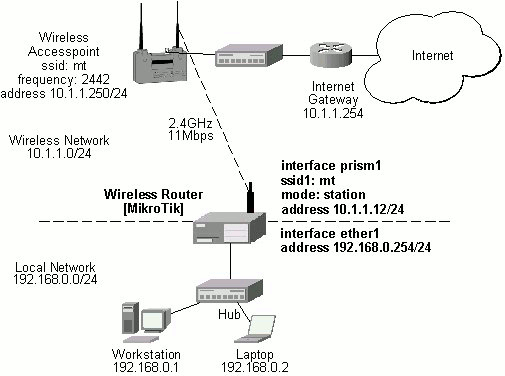
Let us consider the following point-to-multipoint network setup with CISCO/Aironet Wireless Access Point as a base station and MikroTik Wireless Router as a client:

Wireless Client

The access point is connected to the wired network's HUB and has IP address from the network 10.1.1.0/24. The minimum configuration required for the AP is:

  1. Setting the Service Set Identifier (up to 32 alphanumeric characters). In our case we use ssid "mt".
  2. Setting the allowed data rates at 1-11Mbps, and the basic rate at 1Mbps.
  3. Choosing the frequency, in our case we use 2442MHz.
  4. Setting the identity parameters: ip address/mask and gateway. These are required if you want to access the AP remotely using telnet or http.

Reminder! Please note, that the AP is not a router! It has just one network address, and is just like any host on the network. It resembles a wireless-to-Ethernet HUB or bridge. The AP does not route the IP traffic!

The minimum configuration for the MikroTik router's prism wireless interface is:

  1. Setting the Service Set Identifier to that of the AP, i.e., "mt"
  2. The Operation Mode should be "station". If it was previously 'access-point', you should reboot the router after setting it to 'station'!
[MikroTik] interface prism> set 0 ssid=mt                                      
[MikroTik] interface prism> monitor 0
                bssid: 00:40:96:37:71:1E 
    current-frequency: 2442MHz           
       signal-quality: 92                
         signal-level: 195               
          noise-level: 0                 
         current-rate: 11                 
               status: connected         

[MikroTik] interface prism>                                                    

The IP addresses assigned to the wireless interface should be from the network 10.1.1.0/24, e.g.:

[MikroTik] ip address> add address=10.1.1.12/24 interface=prism1               
[MikroTik] ip address> print                                                   
Flags: X - disabled, I - invalid, D - dynamic 
  #   ADDRESS            NETWORK         BROADCAST       INTERFACE             
  0   10.1.1.12/24       10.1.1.0        10.1.1.255      prism1                
  1   192.168.0.254/24   192.168.0.254   192.168.0.254   ether1                
[MikroTik] ip address>

The default route should be set to the gateway router 10.1.1.254 (not to the AP 10.1.1.250 !):

[MikroTik] ip route> add gateway=10.1.1.254
[MikroTik] ip route> print                                                     
Flags: X - disabled, I - invalid, D - dynamic, R - rejected 
  #    TYPE           DST-ADDRESS        GATEWAY        DISTANCE INTERFACE     
  0    static         0.0.0.0/0          10.1.1.254     1        prism1        
  1 D  connect        10.1.1.0/24        0.0.0.0        0        prism1        
  2 D  connect        192.168.0.254/24   0.0.0.0        0        ether1        
[MikroTik] ip route>   

Note! You cannot use the bridging function between the prism and ethernet interfaces, if the prism interface is in the station mode. The bridge does not work in this case!
Wireless Access Point

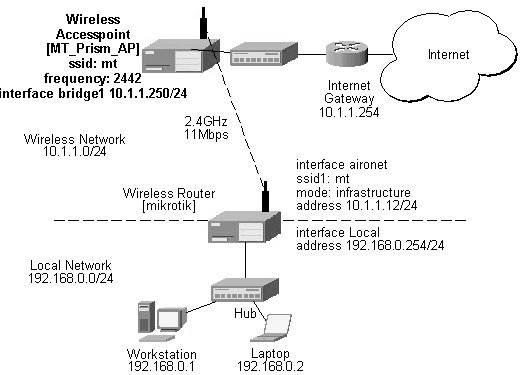
Let us consider the following point-to-point wireless network setup with two MikroTik Wireless Routers:

Access Point

To make the MikroTik router work as an access point, the configuration of the prism wireless interface should be as follows:

The following command should be issued to change the settings for the prism interface:

[MT_Prism_AP] interface prism> set 0 mode=access-point \
                               frequency=2442MHz ssid=mt      
[MT_Prism_AP] interface prism> print                                           
Flags: X - disabled 
  0   name=prism1 mtu=1500 mac-address=00:03:C0:00:06:72 arp=enabled 
      mode=access-point frequency=2442MHz ssid=mt client-name= 
      max-associations=250 hide-ssid=no supported-rates=1-11 basic-rates=1-2 
      fragmentation-threshold=2346 rts-threshold=2432 
      default-access-action=allow 

[MT_Prism_AP] interface prism> monitor 0                                       
                bssid: 00:03:C0:00:06:72 
    current-frequency: 2442MHz           
               status: ap-mode           

[MT_Prism_AP] interface prism> 

The list of registered clients looks like follows:

[MT_Prism_AP] interface prism> registration-table print                        
  # INT MAC-ADDRESS       SIGNAL     SILENCE    RATE       UPTIME              
  0 pri 00:40:96:29:02:88 210        0          11         00:12:50            
  1 pri 00:40:96:37:71:1E 192        0          11         00:00:35            
[MT_Prism_AP] interface prism>   

There are two possible ways of implementing the wireless access point feature:

To enable bridging between the ethernet and prism interfaces, do the following:
  1. Change the bridge settings for the desired protocols:
    [MT_Prism_AP] bridge> set ip=forward arp=forward other=forward 
    [MT_Prism_AP] bridge> print                                                    
               ip: forward
              ipx: discard
        appletalk: discard
             ipv6: discard
              arp: forward
            other: forward
         priority: 1
    [MT_Prism_AP] bridge> 
      
  2. Enable bridging for the desired interfaces:
    [MT_Prism_AP] bridge interface> print                                          
      # INTERFACE                                                           FORWARD
      0 ether1                                                              no     
      1 prism1                                                              no     
    [MT_Prism_AP] bridge interface> set ether1 forward=yes
    [MT_Prism_AP] bridge interface> set prism1 forward=yes                         
    [MT_Prism_AP] bridge interface> print                                      
      # INTERFACE                                                           FORWARD
      0 ether1                                                              yes     
      1 prism1                                                              yes    
    [MT_Prism_AP] bridge interface>                
      
  3. Enable the bridge interface:
    [MT_Prism_AP] interface> print                                                 
    Flags: X - disabled, D - dynamic 
      #   NAME                 MTU   TYPE                                          
      0   ether1               1500  ether                                         
      1 X bridge1              1500  bridge                                        
      2   prism1               1500  prism                                         
    [MT_Prism_AP] interface> enable 1                                              
    [MT_Prism_AP] interface> print                                                 
    Flags: X - disabled, D - dynamic 
      #   NAME                 MTU   TYPE                                          
      0   ether1               1500  ether                                         
      1   bridge1              1500  bridge                                        
      2   prism1               1500  prism                                         
    [MT_Prism_AP] interface>                                                       
      
  4. Assign an IP address to the bridge interface and specify the default gateway for the access point:
    [MT_Prism_AP] ip address> add address=10.1.1.250/24 interface=bridge1
    [MT_Prism_AP] ip address> print                                                
    Flags: X - disabled, I - invalid, D - dynamic 
      #   ADDRESS            NETWORK         BROADCAST       INTERFACE             
      0   10.1.1.250/24      10.1.1.0        10.1.1.255      bridge1               
    [MT_Prism_AP] ip address> .. route add gateway=10.1.1.254
    [MT_Prism_AP] ip address> .. route print                                       
    Flags: X - disabled, I - invalid, D - dynamic, R - rejected 
      #    TYPE           DST-ADDRESS        GATEWAY        DISTANCE INTERFACE     
      0    static         0.0.0.0/0          10.1.1.254     1        bridge1       
      1 D  connect        10.1.1.0/24        0.0.0.0        0        bridge1       
    [MT_Prism_AP] ip address>   
      

The client router requires the System Service Identificator set to "mt". The IP addresses assigned to the interfaces should be from networks 10.1.1.0/24 and 192.168.0.0./24:

[mikrotik] ip address> print                                                
Flags: X - disabled, I - invalid, D - dynamic 
  #   ADDRESS            NETWORK         BROADCAST       INTERFACE             
  0   10.1.1.12/24       10.1.1.0        10.1.1.255      aironet                
  1   192.168.0.254/24   192.168.0.0     192.168.0.255   Local                
[mikrotik] ip address>   
The default route should be set to gateway 10.1.1.254 for the router [mikrotik]:

[mikrotik] ip route> add gateway=10.1.1.254
[mikrotik] ip route> print                                                     
Flags: X - disabled, I - invalid, D - dynamic, R - rejected 
  #    TYPE           DST-ADDRESS        GATEWAY        DISTANCE INTERFACE     
  0    static         0.0.0.0/0          10.1.1.254     1        aironet        
  1 D  connect        10.1.1.0/24        0.0.0.0        0        aironet       
  2 D  connect        192.168.0.254/24   0.0.0.0        0        Local       
[mikrotik] ip route>   


© Copyright 1999-2001, MikroTik